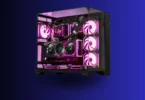

Building a computer is easier when you plan everything online before buying the parts. Whether you need a gaming PC, an office computer, or a powerful system for video editing, online PC-building tools can help you choose components, check compatibility, and manage your budget.
A PC build online tool lets you select computer parts virtually and create a complete system before spending money. You can compare processors, graphics cards, memory, storage, and other components to find the right combination for your needs.
In this guide, you will learn how to plan a custom PC online, choose the right components, avoid common mistakes, and prepare for your first computer build.
What Does PC Build Online Mean?

PC build online means planning a custom computer through a website instead of selecting parts without a clear plan. These websites allow you to choose individual components and create a list of the hardware needed for your computer.
Many online PC builders also offer compatibility checks, estimated power consumption, and price comparisons. These features help you identify potential problems before purchasing your components.
For example, you can select a processor, choose a compatible motherboard, add RAM and storage, and then select a graphics card based on your requirements.
You can use this method to plan different types of computers, including:
- Gaming PCs for modern games.
- Office computers for everyday tasks.
- Workstations for video editing and graphic design.
- Student computers for learning and online classes.
- High-performance systems for demanding software.
The main advantage is that you can plan your computer according to your needs instead of paying for hardware you may not use.
Best Websites for PC Build Online
Several websites can help you plan a custom computer. The right option depends on your location, budget, and the features you need.
1. PCPartPicker
PCPartPicker is a popular tool for creating custom PC parts lists. It helps you select components, compare available prices from supported retailers, and identify certain compatibility issues.
You can begin with a processor and motherboard, then add memory, storage, a graphics card, a case, and a power supply.
The website is particularly useful for beginners who want to organize their parts before buying them.
Website: https://pcpartpicker.com/
2. PCPartPicker Pakistan
If you are buying computer components in Pakistan, PCPartPicker Pakistan can help you explore parts and compare listed prices in Pakistani rupees.
Its online builder organizes components into categories and provides compatibility information to help with planning.
This can be useful when comparing the cost of a custom computer using locally available hardware.
Website: https://www.partpickerpakistan.com/
3. PlanMyPC
PlanMyPC provides an online PC-building tool for selecting components and reviewing a proposed configuration. It includes features for checking certain compatibility issues, estimating power requirements, and comparing prices.
You can also explore example builds to get ideas for your own computer.
This is a helpful starting point if you are unsure which parts to choose.
Website: https://planmypc.com/build
Important: Compatibility tools cannot guarantee that every component will work perfectly together. Always confirm exact specifications, BIOS support, physical dimensions, and power connections before purchasing.
You may also like it:
PC Build Guide: Parts, Tools, and Step-by-Step Setup
Gaming PC Build: Complete Guide for Beginners
Budget PC Build: Best Affordable Parts and Guide
How to Build a PC Online Step by Step
Planning a computer online becomes much easier when you follow a clear process. Start with your budget and intended use, then choose the components that match your requirements.
Step 1: Decide What You Want to Do With Your PC
Before selecting hardware, decide how you will use the computer.
A gaming PC needs different components from a computer designed for browsing, office work, or basic educational tasks.
For example, a computer for web browsing and documents may work well with a processor that includes integrated graphics. A gaming computer may need a dedicated graphics card to deliver better performance in demanding games.
Consider these questions:
- Will you use the computer for gaming or everyday work?
- Do you need it for video editing or graphic design?
- Which games or software do you plan to run?
- Do you need Wi-Fi and Bluetooth?
- Will you upgrade the computer in the future?
Your answers will help you choose the right hardware without wasting money.
Step 2: Set Your Budget
Your budget determines which components you can afford. Include the full cost of the computer rather than considering the processor and graphics card alone.
Remember to account for the following items:
- Processor and motherboard.
- RAM and storage.
- Graphics card, if required.
- Power supply and computer case.
- CPU cooler, if needed.
- Monitor, keyboard, and mouse.
- Operating system and other necessary accessories.
You should also leave some money for unexpected costs, such as delivery charges or additional cooling fans.
If your budget is limited, focus on the components that matter most for your intended workload. You can always upgrade selected parts later if the platform supports them.
Step 3: Choose the Processor (CPU)
The central processing unit, or CPU, handles instructions and performs calculations for your computer. It affects performance in games, office applications, creative software, and many other tasks.
Popular processor families include Intel Core and AMD Ryzen.
When comparing processors, consider the following factors:
- Number of cores and threads.
- Performance in your preferred applications.
- Power consumption and cooling requirements.
- Motherboard compatibility.
- Integrated graphics availability.
For everyday use, you may not need an expensive processor. Gaming and professional workloads may benefit from a more powerful model, depending on the software and graphics card you choose.
Always check the processor’s exact socket and support requirements before selecting a motherboard.
Step 4: Select a Compatible Motherboard
The motherboard connects the processor, memory, storage, graphics card, and other components. It also determines which features and upgrades your computer can support.
Choose a motherboard that supports your selected CPU and provides the connections you need.
Check these details before buying:
- CPU socket and processor support.
- Supported RAM generation.
- Number of storage slots.
- Graphics card and expansion slots.
- USB ports and networking features.
- Wi-Fi and Bluetooth availability.
- BIOS requirements and upgrade options.
A motherboard with more features may be useful for future upgrades, but you do not need to pay extra for features you will never use.
Step 5: Choose the Right RAM
Random access memory, or RAM, temporarily stores data that your computer needs while running applications.
More RAM can help you multitask smoothly, especially when using several applications at the same time. However, the amount you need depends on your workload.
For a basic computer, 8GB may be enough for light tasks. A 16GB configuration is a reasonable starting point for many everyday and entry-level gaming systems, while 32GB may be more suitable for demanding games, content creation, and heavier multitasking.
Check the motherboard’s supported memory generation, capacity, and speeds. DDR4 and DDR5 are different standards and cannot be used interchangeably on a motherboard designed for only one of them.
Step 6: Select Storage
Storage holds your operating system, applications, games, documents, photos, and videos.
You can choose between solid-state drives (SSDs) and hard disk drives (HDDs).
An SSD generally provides faster startup times and quicker application loading than a traditional HDD. An HDD can still be useful when you need large amounts of storage at a lower cost.
Consider these options:
- 256GB SSD: Suitable for a basic computer with limited storage needs.
- 512GB SSD: A practical starting point for many everyday computers.
- 1TB SSD: Useful for gaming, creative projects, and larger application libraries.
- Additional HDD or SSD: Helpful for storing large files, backups, and media collections.
Choose storage based on the applications and files you expect to keep on your computer.
Step 7: Decide Whether You Need a Graphics Card
The graphics processing unit (GPU) handles visual tasks, including gaming, 3D rendering, and many creative applications.
Some processors include integrated graphics, which can be sufficient for everyday work, video playback, and basic display output.
A dedicated graphics card is worth considering if you plan to play demanding games, edit video, work with 3D software, or use applications that benefit from GPU acceleration.
When selecting a graphics card, compare its performance in your preferred applications, memory capacity, power requirements, and physical dimensions.
You should also consider your monitor’s resolution. A computer designed for 1080p gaming may need different hardware from one intended for high-refresh-rate 1440p gaming or 4K gaming.
Step 8: Choose a Reliable Power Supply
The power supply unit (PSU) provides electricity to your computer’s components. Choosing a suitable unit is important for safe and reliable operation.
Do not select a PSU based only on its advertised wattage. Consider the quality of the exact model, its connectors, efficiency rating, and compatibility with your hardware.
Before purchasing, check:
- Total system power requirements.
- Recommended PSU specifications for your graphics card.
- Required CPU and GPU power connectors.
- PSU size and case compatibility.
- Warranty and product reliability.
A good power supply can also make future upgrades easier if it has enough capacity and the necessary connections.
Step 9: Pick a Suitable PC Case
The case holds your components and affects airflow, cooling, appearance, and the amount of space available for upgrades.
Some people prefer a simple case for office work, while others choose gaming cases with tempered glass and RGB lighting.
Make sure the case supports your motherboard’s form factor. Also check graphics card length, CPU cooler height, radiator support, and available fan positions.
Good airflow helps keep temperatures under control, particularly when the computer contains powerful components.
Step 10: Add a CPU Cooler
A CPU cooler removes heat generated by the processor. Some processors include a suitable stock cooler, while others require a separate purchase.
You can choose between air coolers and all-in-one liquid coolers.
Air coolers are often simpler and more affordable. Liquid coolers can be useful for certain high-performance configurations, but they may cost more and require additional installation space.
Check the processor’s cooling requirements, cooler mounting support, case clearance, and RAM clearance before making your decision.
How to Check PC Part Compatibility Online
Compatibility is one of the most important parts of building a custom computer. A component may look suitable on its own but still be incompatible with another part.
An online builder can help identify common conflicts, but you should manually verify important specifications.
| Component | What to check |
| CPU and motherboard | Socket, processor support, and BIOS version |
| RAM and motherboard | DDR generation, capacity, and supported speeds |
| Graphics card and case | Length, thickness, and available clearance |
| CPU cooler and case | Height, mounting support, and radiator clearance |
| PSU and components | Wattage, quality, and required connectors |
| Storage and motherboard | Supported drive types and available slots |
For example, choosing a compatible CPU socket does not automatically guarantee that the motherboard’s installed BIOS supports that processor.
Similarly, a graphics card may fit the motherboard but be too long for the selected case.
Check the manufacturers’ official specifications and manuals before ordering. This extra step can prevent costly mistakes.
How Much Does It Cost to Build a PC?
The cost of a custom computer depends on the processor, graphics card, memory, storage, and other components you select. Prices also vary by country, retailer, product availability, and exchange rates.
A basic computer for office work usually costs less than a gaming PC with a dedicated graphics card. A professional workstation may cost considerably more because it can require additional memory, powerful processing hardware, and larger storage capacity.
When planning your budget, focus on the following priorities:
For everyday use: Choose a suitable processor, enough RAM, and an SSD. A dedicated graphics card may not be necessary.
For gaming: Balance your CPU and GPU choices according to the games you play and your target resolution.
For video editing: Consider the software’s CPU and GPU requirements, available RAM, and storage capacity.
For professional work: Select components based on your applications, project sizes, and expected workload.
Avoid copying a parts list simply because it is popular. A configuration that works well for one person may not provide the best value for your budget or requirements.
Should You Build a PC Yourself or Buy a Prebuilt Computer?
Both options have advantages. Your decision depends on your experience, available time, and willingness to assemble the hardware.
A custom PC lets you select each component according to your needs. It can also make upgrades easier because you know exactly which parts are installed.
A prebuilt computer may be more convenient if you want a ready-to-use system and prefer not to assemble the hardware yourself.
Consider a custom build if you want greater control over component selection, cooling, appearance, and upgrade options. Consider a prebuilt system if convenience, a single purchase, and the seller’s support arrangements are more important.
Whichever option you choose, compare the complete specifications, warranty terms, and total price before buying.
Common Mistakes to Avoid When Building a PC Online
Even a useful PC-building website cannot prevent every purchasing mistake. Keep these common problems in mind when planning your system.
Choosing Parts Without Checking Compatibility
Never assume that all computer components work together. Check CPU support, memory standards, physical dimensions, and power connectors.
Spending Too Much on One Component
An expensive processor does not automatically make a balanced gaming PC. Match the CPU and GPU to your intended games, applications, and monitor.
Buying Too Little Storage
Modern games and creative projects can require considerable space. Think about your future storage needs before deciding on drive capacity.
Choosing a Poor-Quality Power Supply
A cheap PSU with unsuitable specifications can create reliability and compatibility problems. Research the exact model instead of relying on its wattage alone.
Ignoring Cooling and Airflow
Powerful components produce heat. Choose an appropriate cooler and case arrangement to maintain suitable operating temperatures.
Forgetting Additional Costs
Remember to include peripherals, delivery, the operating system, and other necessary accessories in your budget.
What to Do After Planning Your PC Build Online
Once you have selected all your components, review the complete list before purchasing anything.
First, confirm compatibility using the manufacturers’ specifications. Next, compare prices from reliable retailers and review their return policies and warranties.
After your parts arrive, prepare a clean workspace and follow the motherboard and component manuals during assembly. Install the CPU, RAM, and storage according to the instructions, then mount the motherboard, graphics card, power supply, and other components.
Connect the required power cables carefully and check every connection before turning on the computer. Once the system starts successfully, install the operating system, appropriate drivers, and necessary updates.
If you have never assembled a computer before, follow a detailed installation guide or ask an experienced technician for help.
Frequently Asked Questions
1. What is the best website for PC build online?
PCPartPicker is a popular option for creating parts lists and checking certain compatibility issues. PlanMyPC and PCPartPicker Pakistan are other options to explore, depending on your requirements and location.
2. Can I build a PC online for free?
Yes. You can use online PC-building tools to plan a parts list without paying for the planning service. However, you will still need to purchase the physical components if you want to assemble the computer.
3. Can beginners use an online PC builder?
Yes. Online builders organize components into categories and can identify some common compatibility problems. Beginners should still verify manufacturer specifications and seek help with physical assembly if necessary.
4. How much RAM do I need for my PC?
The right amount depends on your workload. A basic computer may work with 8GB, while 16GB is a practical starting point for many general-use and entry-level gaming systems. Demanding applications may benefit from 32GB or more.
5. Is building a custom PC cheaper than buying a prebuilt PC?
It can be, but not always. The total cost depends on component prices, retailer offers, assembly charges, warranties, and included software. Compare complete systems before deciding.
Final Thoughts
A PC build online tool makes it easier to plan a computer that fits your budget and intended use. You can compare hardware, organize your parts list, review prices, and identify compatibility issues before spending money.
Start by deciding what you want your computer to do. Then choose a suitable processor, motherboard, RAM, storage, graphics card, power supply, and case. Review every component carefully and confirm the final specifications before ordering.
With good planning, you can build a computer that delivers the performance you need today while leaving room for future upgrades.