
A budget PC build is a smart way to get a reliable computer without spending too much money. Whether you need a PC for studying, office work, video editing, or gaming, choosing the right parts can help you save money while getting good performance.
You do not need expensive components to build a useful computer. The key is to understand your needs, choose compatible hardware, and spend your money on the parts that matter most.
In this guide, you will learn which components you need, how to choose affordable parts, which specifications to consider, and how to avoid common mistakes when building a PC.
What Is a Budget PC Build?
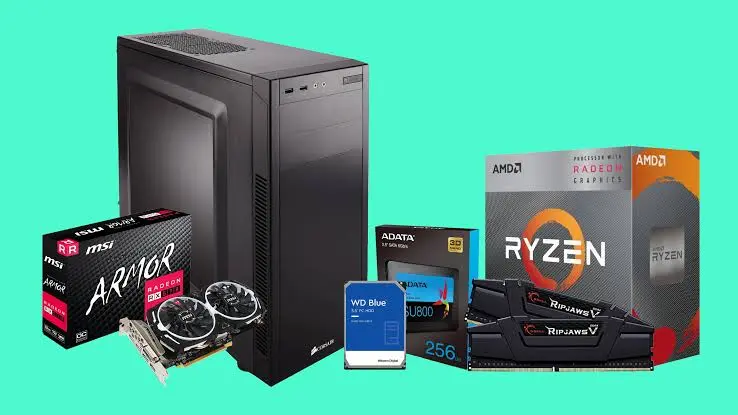
A budget PC build is a computer assembled using affordable components that provide enough performance for your daily tasks. Instead of paying for expensive features you may never use, you select parts according to your needs.
For example, a student who uses Microsoft Office, browses the internet, and attends online classes does not need the same computer as someone who plays demanding games.
A good budget computer can be used for:
- School, college, and university assignments
- Web browsing and online classes
- Office work and spreadsheets
- Programming and basic development
- Photo editing and light video editing
- Gaming, depending on the processor and graphics hardware
Before buying anything, decide what you want your computer to do. This simple step makes it easier to choose the right parts and avoid unnecessary spending.
What Parts Do You Need for a Budget PC Build?
Every desktop computer needs several important components. Each part performs a different job, and all the components must work together.
1. Processor (CPU)
The processor is one of the most important parts of a computer. It handles instructions, calculations, applications, and many background tasks.
For an affordable computer, consider these options:
- AMD Ryzen 5 5600G: A six-core, 12-thread processor with integrated Radeon graphics. It is worth considering for an entry-level computer that does not have a separate graphics card.
- AMD Ryzen 5 5600: A six-core, 12-thread processor suitable for a budget gaming system with a dedicated graphics card.
- Intel Core i3: A suitable option for many entry-level office and everyday computing builds, depending on the generation and exact model.
The Ryzen 5 5600G is particularly useful when you want to start without purchasing a graphics card. Its integrated graphics can handle everyday display tasks and some lighter games.
However, integrated graphics share system memory, and gaming performance depends on the game, resolution, and memory configuration.
2. Motherboard
The motherboard connects the processor, memory, storage, graphics card, and other components.
When choosing a motherboard, check these points:
- It supports your selected processor.
- It uses the correct memory generation.
- It has enough RAM slots for your needs.
- It includes the storage connections you require.
- It fits inside your chosen computer case.
For a Ryzen 5 5600G or Ryzen 5 5600 build, an appropriate A520 or B550 motherboard may be suitable. Always check the manufacturer’s CPU support list and BIOS requirements before buying.
You do not need an expensive motherboard for a basic computer. A reliable model with the features you need is usually a better choice.
3. RAM (Memory)
RAM helps your computer run applications and handle multiple tasks. Having too little memory can make your system feel slow when several programs are open.
For a new budget PC, consider:
- 8GB RAM: Suitable for very basic use when money is extremely limited, but restrictive for modern multitasking.
- 16GB RAM: A sensible starting point for most everyday computers and entry-level gaming systems.
- 32GB RAM: Useful for heavier multitasking, larger creative projects, and some demanding games.
If your motherboard supports dual-channel memory, a matched kit of two RAM modules can improve performance compared with a single module, particularly when using integrated graphics.
For a DDR4 system, 2 × 8GB DDR4 memory is a practical starting point. Make sure the motherboard and processor support the memory you purchase.
4. Storage: SSD or HDD?
Storage determines where your operating system, applications, games, and files are saved.
An SSD is generally the better choice for a modern budget PC because it makes booting, opening applications, and loading files feel faster than a traditional hard drive.
Consider these options:
- 256GB SSD: Suitable for a basic office computer with a limited number of applications.
- 500GB SSD: A practical starting point for general use and a small collection of games.
- 1TB SSD: Better if you store many games, videos, or large files.
- Hard drive: Useful as additional storage when you need space for large files at a low cost.
If your budget allows, choose an SSD as your primary drive. You can add a larger drive later when you need more storage.
5. Graphics Card (GPU)
The graphics card processes images and renders games, visual effects, and other graphics-intensive workloads.
Not every budget PC needs a separate GPU.
For office work, studying, browsing, and video playback, integrated graphics may be sufficient. A processor such as the Ryzen 5 5600G includes integrated graphics, so you can build a working computer without purchasing a dedicated graphics card.
For gaming, a dedicated GPU can provide a significant performance improvement.
When shopping for an affordable graphics card, compare:
- Gaming performance at your preferred resolution
- Video memory capacity
- Power consumption
- Physical size
- Required power connectors
- Driver support and warranty
Used graphics cards can reduce the total cost, but test them carefully before buying. Avoid selecting a card based only on its advertised memory or model name.
6. Power Supply (PSU)
The power supply provides electricity to your computer’s components. It is one part where cutting costs too aggressively can create serious problems.
Choose a reliable PSU that provides enough power for your CPU and graphics card.
Check its:
- Rated wattage
- Safety protections
- Build quality
- Required power connectors
- Manufacturer warranty
A quality 450W to 550W unit may be enough for some entry-level builds, but the correct wattage depends on the exact components. More powerful graphics cards may require a stronger PSU.
Avoid unknown, poorly built power supplies simply because they are cheap. A dependable power supply is more valuable than unnecessary RGB lighting or an expensive case.
7. Computer Case
The case holds your components and helps manage airflow.
A budget case does not need to look expensive. Focus on practical features such as:
- Compatibility with your motherboard size
- Enough space for the graphics card
- Good airflow
- Room for fans
- Easy cable management
- Front USB ports and audio connections
A simple case with a mesh front and adequate ventilation is often a sensible choice.
Before purchasing, confirm that your motherboard and graphics card will fit inside it.
8. CPU Cooler and Case Fans
Many budget processors include a stock cooler. If yours does, you may not need to purchase another cooler immediately.
Additional cooling may be useful if you choose a processor with high heat output, use a compact case, or want lower operating temperatures.
You can also add case fans if the case does not provide enough airflow. Start with the cooling hardware you actually need rather than spending money on decorative equipment.
Three Budget PC Build Options
The best configuration depends on your budget, workload, and whether you want to play games.
Option 1: Basic Office PC
This build is suitable for students, home users, and office workers.
| Component | Suggested choice |
| Processor | Modern entry-level CPU with integrated graphics |
| Motherboard | Compatible budget motherboard |
| RAM | 8GB minimum; 16GB preferred |
| Storage | 256GB or 500GB SSD |
| Graphics | Integrated graphics |
| PSU | Reliable unit appropriate for the system |
| Case | Basic airflow-focused case |
This configuration is designed for web browsing, documents, online classes, video playback, and general office work.
If you regularly keep many browser tabs open or use several applications together, choose 16GB RAM if possible.
Option 2: Budget PC for Everyday Use and Light Gaming
This option provides more flexibility for users who want to work and play lighter games.
| Component | Suggested choice |
| Processor | AMD Ryzen 5 5600G |
| Motherboard | Compatible A520 or B550 board |
| RAM | 16GB DDR4, preferably 2 × 8GB |
| Storage | 500GB SSD |
| Graphics | Integrated Radeon graphics |
| PSU | Reliable model suitable for the system |
| Case | Budget case with good airflow |
The Ryzen 5 5600G offers six CPU cores, 12 threads, and integrated Radeon graphics. It can handle everyday work and light gaming without a separate GPU.
Actual gaming performance varies. Demanding modern games may require low settings, reduced resolution, or a dedicated graphics card.
This build also gives you the option to add a compatible dedicated GPU later, provided your PSU and case can support it.
Option 3: Budget Gaming PC
If gaming is your main priority, consider a dedicated graphics card and a processor that can keep up with it.
| Component | Suggested choice |
| Processor | AMD Ryzen 5 5600 |
| Motherboard | Compatible A520 or B550 board |
| RAM | 16GB DDR4, preferably 2 × 8GB |
| Storage | 500GB or 1TB SSD |
| Graphics card | Suitable entry-level or tested used GPU |
| PSU | Quality unit matched to the GPU |
| Case | Airflow-focused case |
The Ryzen 5 5600 does not include integrated graphics, so you need a dedicated graphics card for display output. This is an important difference between the Ryzen 5 5600 and Ryzen 5 5600G.
Your graphics card will have a major effect on gaming performance. Choose it based on the games you play and the frame rates you want, rather than buying the most expensive component your budget allows.
Note: These are example configurations, not guaranteed complete builds at a fixed price. Check current local prices and component compatibility before purchasing.
How Much Does a Budget PC Build Cost in Pakistan?
The total cost depends on the components you select, whether they are new or used, and whether you already own a monitor and other accessories.
In Pakistan, you should compare prices from several computer shops and online retailers before making a decision. Prices can differ because of availability, warranty coverage, import costs, and the condition of used hardware.
Your budget should also account for items beyond the computer itself.
| Item | Why it matters |
| Main PC components | CPU, motherboard, RAM, storage, PSU, case, and GPU if needed |
| Monitor | Required unless you already own a compatible display |
| Keyboard and mouse | Needed for normal desktop use |
| UPS or surge protection | Can help protect equipment from power problems |
| Windows or other software | Consider licensing and software requirements |
If your budget is limited, start with a good foundation and upgrade gradually. For example, you can begin with integrated graphics and add a dedicated GPU later.
Do not spend your entire budget on the processor and graphics card while ignoring the power supply, storage, or memory.
How to Build a PC Step by Step
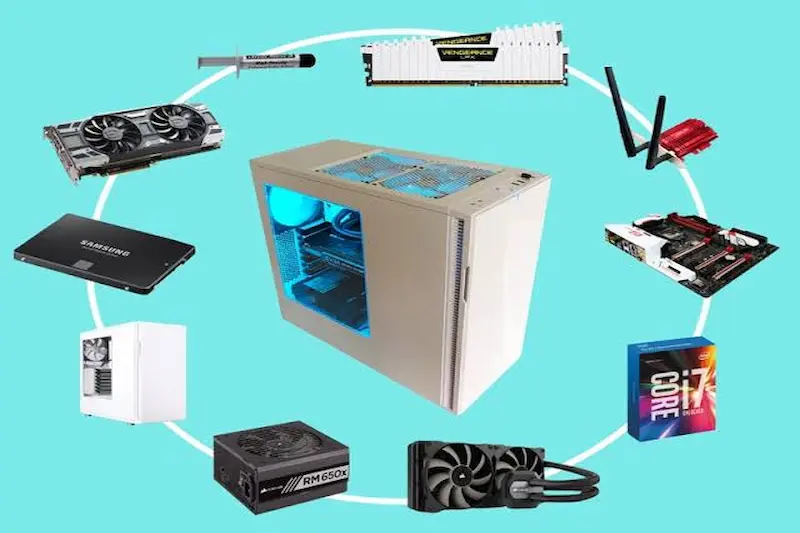
Building a desktop computer is manageable when you follow a clear process. If you have never assembled a PC before, read the component manuals and work slowly.
Step 1: Check Compatibility
Before opening any packages, confirm that the CPU fits the motherboard, the RAM is supported, and the case can accommodate your components.
Check the PSU requirements and graphics card dimensions as well.
Step 2: Install the Processor
Place the motherboard on a clean, nonconductive surface. Follow the motherboard instructions to install the CPU correctly.
Never force the processor into its socket. The alignment marks should match.
Step 3: Install RAM and SSD
Install the memory modules in the recommended slots shown in the motherboard manual.
If you are using an M.2 SSD, install it in the appropriate slot and secure it correctly.
Step 4: Install the CPU Cooler
Install the included or selected cooler according to its instructions. If thermal paste is required, apply it as directed by the manufacturer.
Connect the cooler to the appropriate CPU fan header.
Step 5: Mount the Motherboard
Install the correct motherboard standoffs in the case. Position the motherboard carefully and secure it without overtightening the screws.
Step 6: Install the Power Supply
Mount the PSU and connect the required motherboard and CPU power cables.
If your graphics card needs separate power connectors, make sure the PSU provides the correct connections.
Step 7: Install the Graphics Card
If your build uses a dedicated graphics card, install it in the appropriate PCIe slot and secure it to the case.
Connect its power cables if required.
Step 8: Connect the Cables
Connect the case power button, USB ports, audio ports, fans, and other necessary cables using the motherboard manual.
Check all connections before turning on the computer.
Step 9: Start the Computer
Connect the monitor, keyboard, and mouse. Turn on the computer and enter the BIOS or UEFI if necessary.
Check whether the system recognizes the processor, RAM, and storage drive.
Step 10: Install the Operating System
Install a supported operating system, then install the appropriate drivers and updates.
Finally, test the computer for stability, check temperatures, and make sure all components work properly.
Common Mistakes to Avoid When Building a Budget PC
A few mistakes can make an affordable build more expensive than expected.
Spending Too Much on Appearance
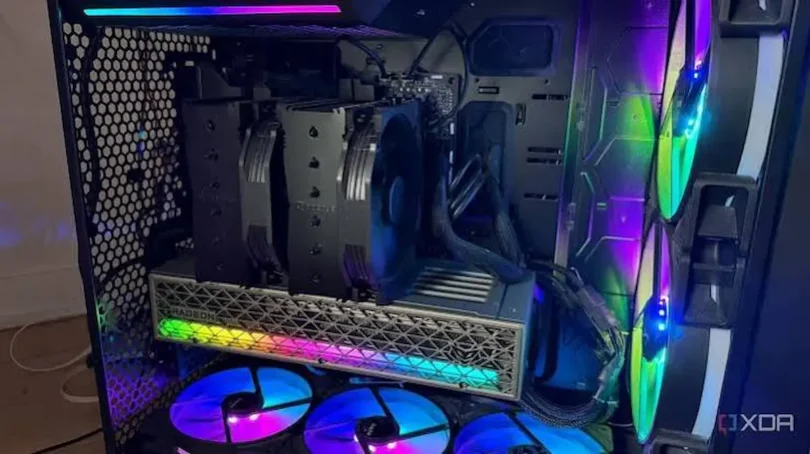
RGB fans, decorative lighting, and premium cases can look attractive, but they do not automatically improve performance.
Spend first on the processor, memory, storage, graphics card if needed, and a reliable PSU.
Buying Incompatible Components
A processor may not work with a motherboard without the correct socket and BIOS support. DDR4 memory also cannot be installed in a DDR5-only motherboard.
Check compatibility before purchasing.
Choosing Too Little RAM
A computer with limited memory may struggle with multitasking. For a new general-purpose build, 16GB is a more comfortable target than 8GB when the budget permits.
Ignoring the Power Supply
A low-quality PSU can cause instability and may damage hardware if it fails. Choose a reputable model rather than relying on advertised wattage alone.
Buying Used Parts Without Testing
Used hardware can offer good value, but it may have hidden problems. Test used graphics cards, motherboards, and storage drives whenever possible. Ask about warranty and return options.
Forgetting Future Upgrades
If you plan to add a graphics card or more storage later, make sure your case, motherboard, and PSU can accommodate those upgrades.
Tips to Save Money on a Budget PC Build
You can reduce the total cost without making your computer unreliable.
- Reuse a compatible monitor, keyboard, and mouse if you already have them.
- Choose a processor with integrated graphics if you do not need a dedicated GPU yet.
- Buy only the storage capacity you currently need, while leaving room for expansion.
- Compare new and used component prices carefully.
- Prioritize 16GB RAM for a balanced everyday system when affordable.
- Avoid paying extra for features that do not support your actual workload.
- Check local warranty terms before buying.
- Compare the price of a custom build with a tested refurbished or prebuilt computer.
A refurbished office PC may be a good option for basic tasks. However, small office computers can have limited PSU capacity and case space, which may prevent you from installing a full-size graphics card.
Frequently Asked Questions
1. What is the best budget PC build for beginners?
For basic tasks, choose a processor with integrated graphics, a compatible motherboard, 16GB RAM if affordable, an SSD, and a reliable power supply. For gaming, the best configuration depends on your budget and the games you want to play.
2. Can I build a gaming PC without a graphics card?
Yes. A processor with integrated graphics, such as the AMD Ryzen 5 5600G, can run the computer without a separate GPU. It is suitable for everyday tasks and some lighter games, but demanding games may perform poorly.
3. Is 8GB RAM enough for a budget PC?
Eight gigabytes can work for basic browsing and office tasks, but it may limit multitasking. Sixteen gigabytes is a better starting point for most new general-purpose computers.
4. Is an SSD better than an HDD for a budget computer?
An SSD is generally better for your operating system and applications because it offers faster boot times and loading. A traditional hard drive can still be useful for inexpensive bulk storage.
5. Should I buy new or used PC parts?
New parts usually offer clearer warranty coverage, while used parts can save money. If you buy used hardware, check its condition, compatibility, and return policy, and test it before completing the purchase.
Conclusion
A budget PC build can provide excellent value when you select components according to your needs. Start by deciding whether you need a computer for office work, studying, content creation, or gaming.
Choose a compatible processor and motherboard, aim for enough RAM, use an SSD, and never overlook the quality of the power supply. If you need a gaming computer, spend carefully on the graphics card and check the requirements of your favorite games.
You do not need to buy everything at once or choose expensive parts to get started. With careful planning, you can build a dependable computer now and upgrade it as your needs change.